game · KeyChainino · Tutorial
[TUTORIAL] How to make the WALLED game step by step – Part 4
Written in 2016 for the first KeyChainino (ATtiny84, 30 LEDs). On the KeyChainino 144 games are made differently: see How to create your own game.
In the previous tutorial, we learned how to handle the collision between the “man” and the “wall” in the WALLED game.
Today we make a function that increases the walls’ speed after a number of walls have spawned. And we create some aesthetic touches for the start and the end of the game.
Step 1: Increase the walls speed
If we want to make the game trickier, we can increase the walls’ speed.
As we said, the wall’s speed depends on the variable wallUpdatePositionSpeed. If we decrease its value, the wall’s speed increases.
We can decrease this value after a number of walls have spawned. To do that, we need to know how many walls we have created.
At the top of the sketch, at the end of the WALL VARIABLE, add:
unsigned int wallCounter = 0; //the number of walls spawned used to increase the speed
This variable will count the walls.
Now, every time we create a new wall, we need to increase this variable.
We want to increase the wall speed after 10 walls are created. So we check the modulo of wallCounter by 10 and if it is zero we decrease the wallUpdatePositionSpeed.
So we modify this code, inside the updateWallPosition() function:
...
  if (wallYPosition < MATRIX_ROW - 1) { //if wall position isn't the bottom
    wallYPosition++; //increase Y position - go down
  } else { //else, if the wall touch the bottom
    wallYPosition = 0; //reset its position
    wallGateXPosition = random(0, MATRIX_COL); //randomize another gate
  }
...
into this:
...
  if (wallYPosition < MATRIX_ROW - 1) { //if wall position isn't the bottom
    wallYPosition++; //increase Y position - go down
  } else { //else, if the wall touch the bottom
    wallYPosition = 0; //reset its position
    wallGateXPosition = random(0, MATRIX_COL); //randomize another gate
    wallCounter++; //increase wall counter
    //increase wall spaw update
    if (wallCounter % 10 == 0) { //if wallCounter is egual to 10
      wallUpdatePositionSpeed--; //we can increase the speed of the wall
      if (wallUpdatePositionSpeed < 7) { //by decreasing the wallUpdatePositionSpeed variable
        wallUpdatePositionSpeed = 7; //if this variable is under 7, we stay at this speed.
      }
    }
  }
...
I have added another check to keep the wallUpdatePositionSpeed higher than 7, in order to limit the max speed of the wall.
You can upload the sketch to see that after 10 walls, they speed up.
Now let’s add some graphics!
Part 2: Adding aesthetics
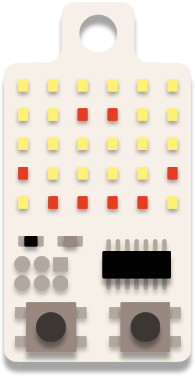
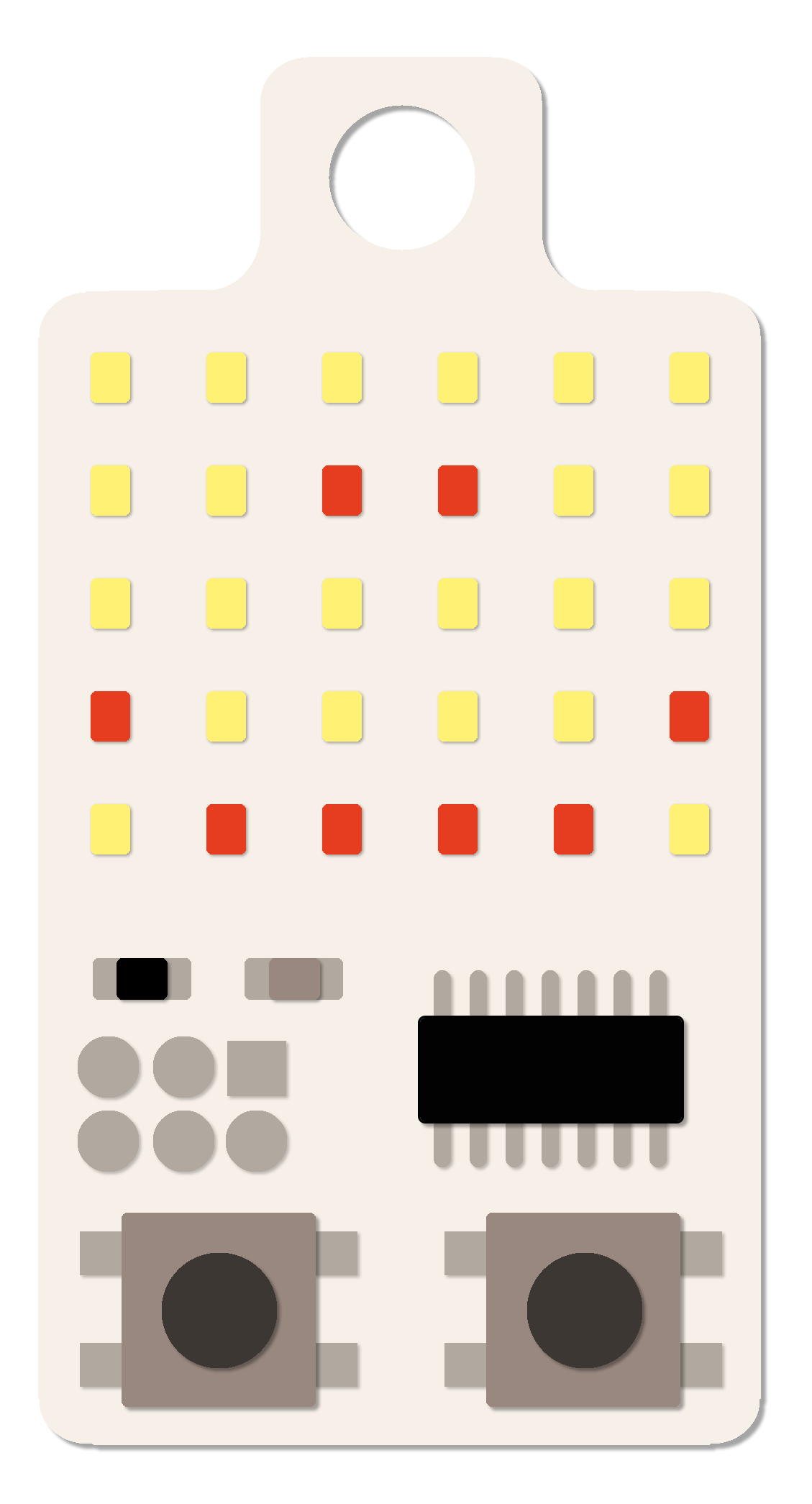
First we add two faces: the smiling one and the sad one.
To do that, add the following code after the numbers matrix at the top of the sketch:
//KeyChainino Face stored in FLASH in order to reduce RAM size
const PROGMEM bool KeyChaininoSmileFace[MATRIX_ROW][MATRIX_COL] = {
  {0, 0, 0, 0, 0, 0},
  {0, 0, 1, 1, 0, 0},
  {0, 0, 0, 0, 0, 0},
  {1, 0, 0, 0, 0, 1},
  {0, 1, 1, 1, 1, 0}
};

const PROGMEM bool KeyChaininoSadFace[MATRIX_ROW][MATRIX_COL] = {
  {0, 0, 0, 0, 0, 0},
  {0, 0, 1, 1, 0, 0},
  {0, 0, 0, 0, 0, 0},
  {0, 1, 1, 1, 1, 0},
  {1, 0, 0, 0, 0, 1}
};
Now we need to create two functions that will show these two faces. Add these lines at the end of the sketch:
void showKeyChaininoSmileFace() {
  for (byte i = 0; i < MATRIX_ROW; i++) {
    for (byte j = 0; j < MATRIX_COL; j++) {
      matrixState[i][j] = (bool*)pgm_read_byte(&(KeyChaininoSmileFace[i][j]));
    }
  }
}

void showKeyChaininoSadFace() {
  for (byte i = 0; i < MATRIX_ROW; i++) {
    for (byte j = 0; j < MATRIX_COL; j++) {
      matrixState[i][j] = (bool*)pgm_read_byte(&(KeyChaininoSadFace[i][j])); //here we read the matrix from FLASH
    }
  }
}
To show one or the other face, we need to call them.
We can show the smile face when we start the game and the sad face when we lose the game.
Add the following lines in the setup() function after sei(); and before clearMatrix()
...
  // enable global interrupts:
  sei();
  showKeyChaininoSmileFace(); //show KeyChainino smile face
  delay(500);
  clearMatrix(); //clear the Matrix
...
The delay is used to show the face for 500 mSec.
Also insert these lines at the start of the resetGame() function, before the clearMatrix() function.
void resetGame() {
  //reset all game variables to the start condition
  showKeyChaininoSmileFace();
  delay(500);
  clearMatrix();
  delay(300);
...
Now we insert the sad face when we lose the game. So insert the following lines in the endGame() function after the clearMatrix() and before the delay:
void endGame() {
  showScore(score); //shows the score number
  clearMatrix(); //clear all the LEDs
  showKeyChaininoSadFace(); //show KeyChaininoFace
  delay(500);
  goSleep(); //sleep to reduce power
  resetGame(); //reset game variables
}
Now you can upload the sketch and you will see the smile face when you start to play 🙂 and the sad face when you lose 🙁
You can also download the final sketch here.
Final Considerations
With this tutorial, you learned the basic steps to create an awesome game for KeyChainino!
All you need to do is start with the basic sketch structure and add, step by step, all the variables and functions to animate your hero and your monsters.
Ad Majora!