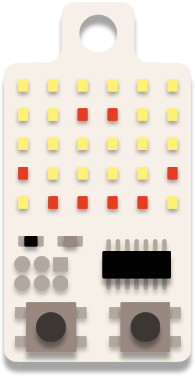
game · KeyChainino · Tutorial
[TUTORIAL] How to make the WALLED game step by step – Part 1
Written in 2016 for the first KeyChainino (ATtiny84, 30 LEDs). On the KeyChainino 144 games are made differently: see How to create your own game.
Making a game for KeyChainino is really easy.
To prove it, I decided to write a tutorial that builds the WALLED game step by step, in a really easy way.
The goal of this game is to move the “man” (a dot) through the gates of the walls that come down from the top of the screen.
Step 1: Download the basic sketch
Every game made for KeyChainino starts with the same structure.
Download the basic structure here.
Ok, now let’s take a look at this basic sketch:

The first #include lines are used to include all the AVR functions that we use for the interrupts, progmem, sleep and power libraries.
The #define lines give a name to a number and describe the number of ROW and COL, the number of Pins used for Charlieplexing and the pins used for the two Buttons.
Next we have the variable pins[PIN_NUMBER] that contains the pins used for the Charlieplexing.
We have the connectionMatrix[MATRIX_ROW][MATRIX_COL][2] which describes the connection of each LED with the corresponding pins for Anode and Cathode.
The first value inside the inner braces is the Anode, the second value is the Cathode for each LED.
At the end we have the matrixState[MATRIX_ROW][MATRIX_COL] used to actually change the states of the LEDs by changing their corresponding bits.
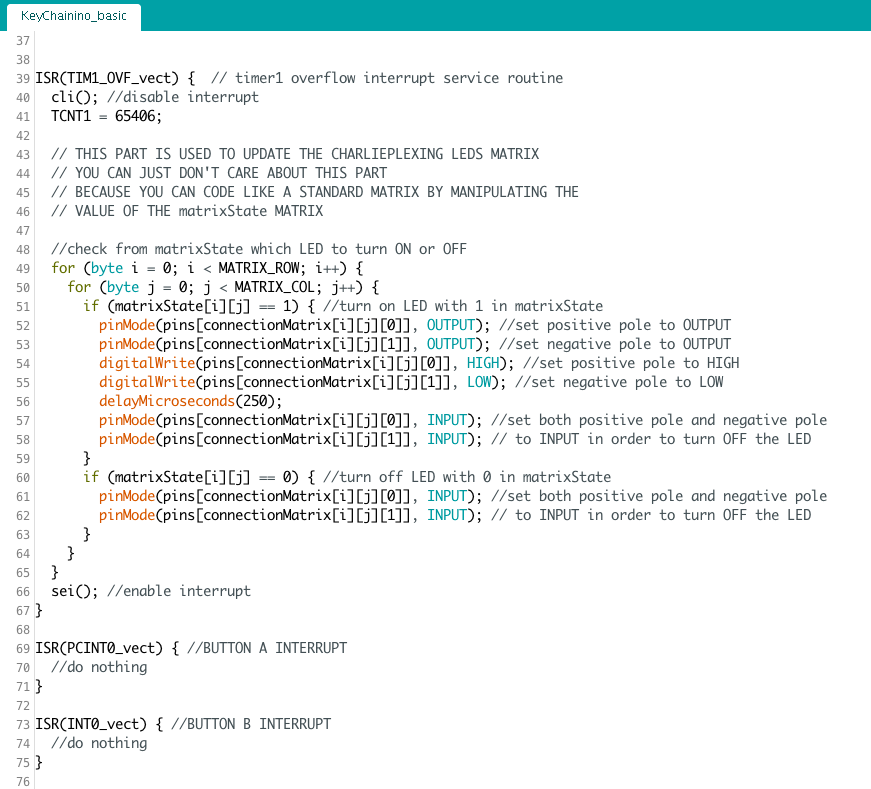
Here we have the interrupt routines.
- the ISR(TIM1_OVF_vect) is used to update the Charlieplexing Matrix according to the matrixState array.
- the ISR(PCINT0_vect) and the ISR(INT0_vect) actually don’t do anything inside their functions. But it’s important to put them in the sketch, otherwise the two interrupts, used to wake up the microcontroller after it goes to sleep, won’t work.
Learn more about Charlieplexing and Timer1 overflow interrupt here.
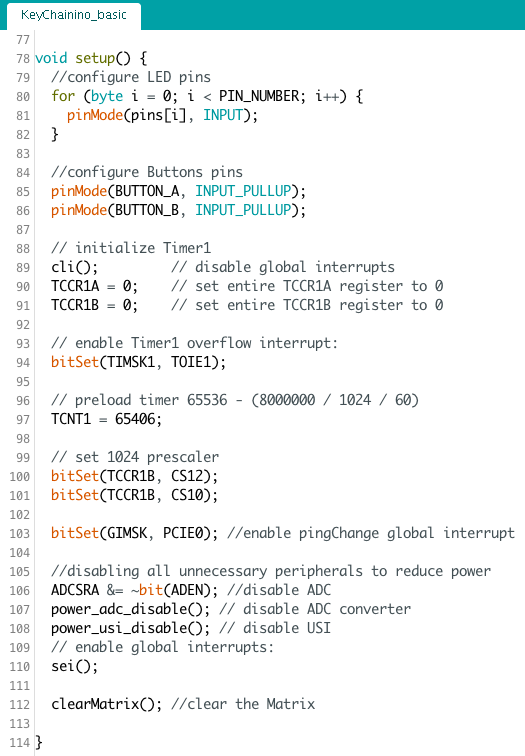
Well, now we have the setup() function where we setup all the pins used for the charlieplexing and the buttons.
Next we setup the timer overflow interrupt and the button interrupts.
After that we disable all the unnecessary peripherals to reduce power consumption.
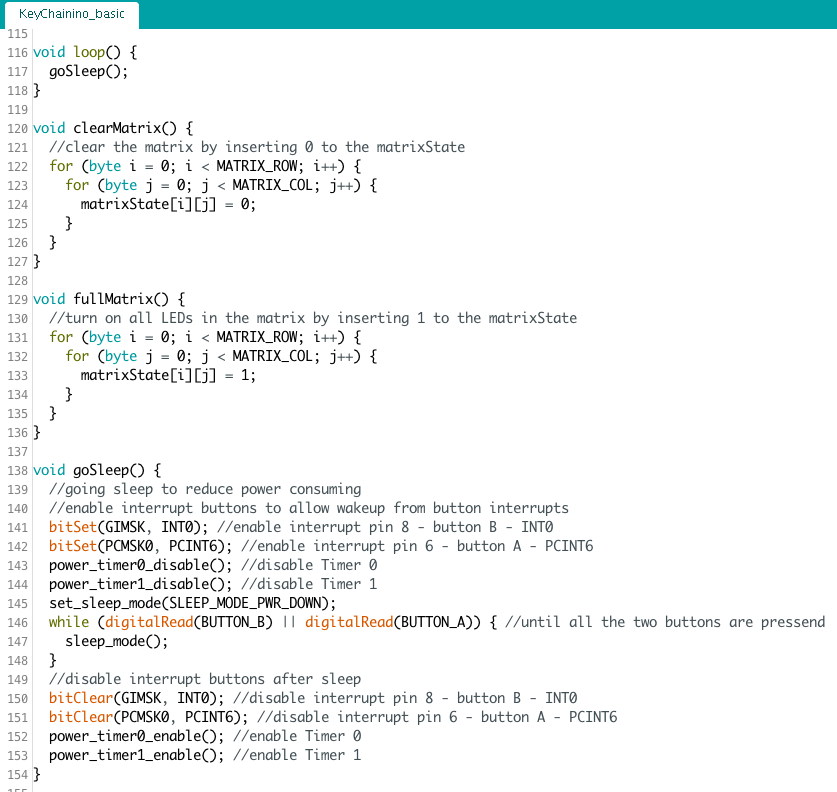
The loop() function actually doesn’t do anything. It only puts the microcontroller in sleep mode with the goSleep() function.
This function – goSleep() – actually enables the interrupt for the two buttons, disables the timers to reduce power and puts the micro in sleep mode.
Until the two buttons are pressed at the same time, the microcontroller stays in sleep mode.
When we press the two buttons at the same time, the function disables the two button interrupts and re-enables the two timers.
Now we can start to build our man, the dot used to go inside the wall’s gates.
The other two functions – clearMatrix() and fullMatrix() – are used to put all the bits of the matrixState – and so the LEDs – to zero and to one respectively.
Step 2: Build the man and let it move
The man is a dot that runs on the bottom line of the LED matrix.
To move the man to the left or to the right, we use the two buttons.
Let’s start by creating the man’s variable:
//MAN VARIABLES
byte manXPosition = 2;//the position of the man
Insert this variable at the top of the sketch, after the matrixState declaration.
This variable indicates the X position – so the COL position – of the man.
Now we can write a function that allows us to move the man.
Insert the following function after the loop() function:
void loop() {
  goSleep();
}
void updateManPosition() {
  //depends on which button is pressed, change the man position
  // to left (button A) or right (button B)
  int manXNewPosition = manXPosition; //store man X position that is going to change
  //if we press the button B we go Right
  if (!digitalRead(BUTTON_B)) {
    delay(70);
    if (!digitalRead(BUTTON_B)) {
      manXNewPosition++;
    }
  }
  //if we press the button A we go Left
  if (!digitalRead(BUTTON_A)) {
    delay(70);
    if (!digitalRead(BUTTON_A)) {
      manXNewPosition--;
    }
  }
  //fix man X position
  if (manXNewPosition > MATRIX_COL - 1) {
    manXNewPosition--;
  }
  if (manXNewPosition < 0) {
    manXNewPosition = 0;
  }
  //only if the man position is different
  // (means that the button was pressed)
  if (manXNewPosition != manXPosition) {
    //delete current man Position
    matrixState[MATRIX_ROW - 1][manXPosition] = 0;
  }

  //set current man position to new position
  manXPosition = manXNewPosition;
  //show new man Position
  matrixState[MATRIX_ROW - 1][manXPosition] = 1;
}
In this function first we store the actual x position of the man in the variable manXNewPosition.
After that we check if a button is pressed. If it is, depending on which button is pressed, we increase – go right – or decrease – go left – the manXNewPosition.
Next we check if the manXNewPosition variable exceeds the game field limits. So if we are over the MATRIX_COL – 1 we set the variable back to MATRIX_COL – 1.
We use “MATRIX_COL – 1” because MATRIX_COL is equal to 6, since we have 6 columns. But our first column is at position 0 (zero).
So our last column is at index
MATRIX_COL - 1 = 6 - 1 = 5
The same story for the ROWs.
Well, after fixing the manXNewPosition variable, we can really show the man by turning on the LEDs with the matrixState.
First we check if the man’s position has changed. If it has, we refresh its position by clearing its previous position – by putting the corresponding position in the matrixState array to zero – and then we set its new position – by putting the corresponding position in the matrixState array to one.
Otherwise, if the man is still in the same position, we do nothing to avoid annoying flickers.
Now we need to call this function inside the loop() function in order to run it all the time.
So we change the loop() function in this way:
void loop() {
  updateManPosition();
}
Ok, now if we upload the sketch to KeyChainino we can see the man and we can move it to the left or to the right.
If you don’t know how to upload the sketch to KeyChainino, check this guide.
In the updateManPosition() function, we check the buttons states to move the man.
  if (!digitalRead(BUTTON_B)) {
    delay(70);
    if (!digitalRead(BUTTON_B)) {
      manXNewPosition++;
    }
  }
This part is used to move the man to the right. You certainly noticed that we check the button’s state twice.
This method is called “software debounce” and is used to check if the button is really pressed. Learn more here.
The delay that we have inserted actually determines the button sensitivity. We can create a variable to change this sensitivity easily.
At the top of the sketch, after the declaration of the manXPosition variable, we write:
//MAN VARIABLES
byte manXPosition = 2;//the position of the man
byte keySensibility = 70; //the sensibility of the two touch buttons. Decrease to have more sensitivity
and next we change the delay(70) in the updateManPosition() function to this:
delay(keySensibility);
Now try to change the keySensibility variable to other values and see what happens to the man’s movement!
That’s the end of this first part of the tutorial.
If you want, download the complete sketch of this first tutorial part here.
In the second part we start to build the walls.